
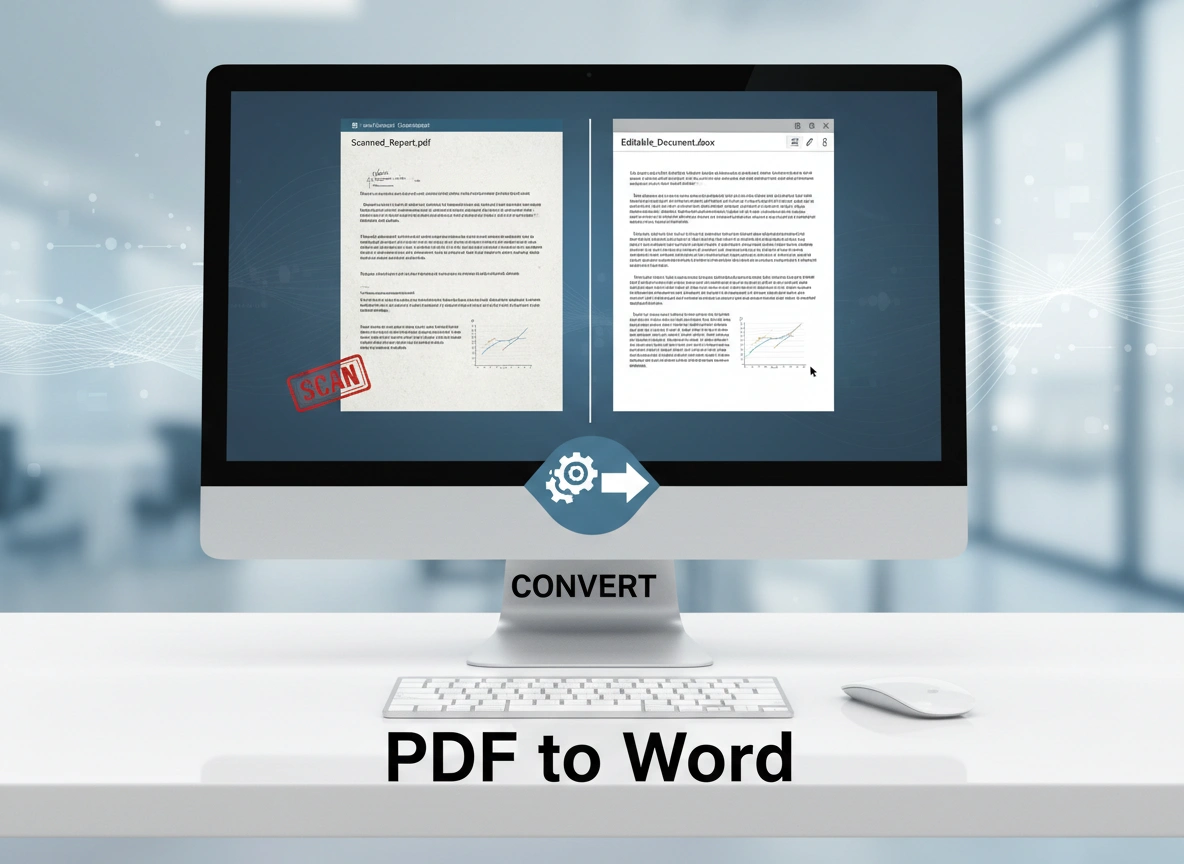

A scanned PDF can feel like a digital dead end. You have the information you need, but it’s locked away in a flat, uneditable image. Whether it’s a signed contract, an old company report, or pages from a research journal, the inability to copy, search, or edit the text can bring your workflow to a halt. The solution is to convert these scanned documents into fully editable Microsoft Word files. This process unlocks the content, allowing you to make updates, extract quotes, and integrate the information into new projects seamlessly.
This guide will walk you through everything you need to know about transforming your scanned PDFs. We will explore the challenges involved, detail several conversion methods, and provide tips to ensure your final document is accurate and professional. By the end, you’ll be equipped to choose the right method for your specific needs and turn any scanned PDF into a flexible Word document.
The Challenges of Scanned PDFs
Converting a standard, digitally created PDF to Word is often straightforward. However, a scanned PDF presents unique hurdles. Unlike a native PDF where text is encoded as characters, a scanned PDF is essentially an image of the document. Your computer sees a picture, not individual letters and words. This distinction is the source of most conversion difficulties.
The OCR Imperative
To make the text in an image editable, you need a technology called Optical Character Recognition (OCR). OCR software scans the image of the text, identifies the shapes of the letters and numbers, and translates them into actual machine-encoded text. The quality of this conversion is the single most important factor in creating a usable Word document.
Poor OCR can result in a jumble of nonsensical characters, misplaced letters, and formatting errors. The accuracy depends heavily on the quality of the original scan. Blurry text, poor lighting, skewed pages, or handwriting can all confuse the OCR engine, leading to mistakes in the final output.
Formatting and Layout Preservation
Another significant challenge is maintaining the original document’s layout. Scanned documents often contain complex formatting, including columns, tables, headers, footers, images, and specific font styles. A simple text extraction might give you the words, but it will likely lose the structure that gives them context.
A good conversion tool must not only perform accurate OCR but also intelligently reconstruct the original layout in Word. It needs to recognize columns and keep them separate, rebuild tables so they are functional, and place images correctly relative to the text. Preserving this formatting manually can be incredibly time-consuming, which is why choosing a powerful tool is so crucial.
Methods for Converting Scanned PDFs to Word
You can use several methods to convert your scanned documents, ranging from powerful paid software to convenient online tools. Each has its own strengths and weaknesses.
Method 1: Using Adobe Acrobat Pro
Adobe Acrobat Pro is the industry standard for PDF management, and for good reason. It offers one of the most powerful and accurate OCR engines available. If you regularly work with scanned documents, investing in Acrobat Pro can save you significant time and effort.
Step-by-Step Guide:
- Open the Scanned PDF: Launch Adobe Acrobat Pro and open the scanned PDF file you wish to convert.
- Enhance the Scan (Optional but Recommended): Before converting, use the “Enhance Scans” tool. You can find this in the right-hand tool pane or by searching for it. This feature automatically cleans up the document by straightening pages, removing backgrounds, and sharpening text, which dramatically improves OCR accuracy.
- Recognize Text: Acrobat may automatically run OCR when you open a scanned file. If not, go to the “Scan & OCR” tool and select “Recognize Text.” Ensure the language is set correctly for your document.
- Export to Word: Once the text has been recognized, go to the “File” menu, select “Export To,” then “Microsoft Word,” and finally “Word Document.”
- Configure Settings: An export dialog box will appear. Click the “Settings” button to control how the layout is handled. You can choose to retain the flowing text or the exact page layout. Retaining the layout is usually best for complex documents, but may use text boxes in Word, which can be tricky to edit.
- Save the File: Choose a location, name your new file, and click “Save.” Acrobat will process the document and create an editable .docx file.
Method 2: Using Microsoft Word
You might be surprised to learn that recent versions of Microsoft Word (Microsoft 365/Office 2016 and newer) have a built-in PDF conversion feature that includes basic OCR capabilities. This is a convenient option if you don’t have specialized software and only need to convert documents occasionally.
Step-by-Step Guide:
- Open Word: Launch a new, blank document in Microsoft Word.
- Open the PDF: Go to the “File” menu and click “Open.” Browse to find and select your scanned PDF file.
- Confirm Conversion: Word will display a notification explaining that it will now convert your PDF into an editable Word document. It warns that the process may take a while and the resulting layout might not be perfect. Click “OK” to proceed.
- Wait for the Conversion: Word will work in the background to perform OCR and reconstruct the document. This can be slow for large or complex files.
- Edit and Save: Once complete, the content will appear in your Word window. You may need to do some manual cleanup of the formatting. Review the document carefully and then save it as a Word Document (.docx).
Method 3: Using Online Conversion Tools
Numerous websites offer free PDF to Word conversion. These tools are incredibly convenient because they require no software installation and can be accessed from any device with an internet connection. However, you should be cautious when using them, especially with sensitive or confidential documents.
Popular online tools include Smallpdf, iLovePDF, and PDF2Go. Most of them follow a similar process.
Step-by-Step Guide:
- Navigate to the Website: Open your web browser and go to your chosen online converter.
- Upload Your Scanned PDF: Drag and drop your file onto the webpage or use the “Choose File” button to upload it from your computer.
- Select the OCR Option: This is a critical step. Because you have a scanned file, you must select the option that includes OCR. Some free tools may limit this feature or require you to sign up for a premium plan to use it.
- Start the Conversion: Click the “Convert” button and wait for the tool to process your file.
- Download the Word Document: Once finished, a download link for your .docx file will appear. Download the file to your computer.
While convenient, be mindful of privacy. Uploading a document to a third-party server means you lose control over that data. Always check the privacy policy of an online service before uploading sensitive information.
Tips for an Accurate Conversion
The tool you use is only part of the equation. Following best practices before and after conversion can significantly improve the quality of your final editable document.
- Start with a High-Quality Scan: The better the scan, the better the OCR results. If possible, scan documents at a resolution of at least 300 DPI (dots per inch). Ensure the page is flat, well-lit, and straight.
- Proofread Meticulously: No OCR process is perfect. After conversion, you must proofread the document carefully. Pay close attention to numbers, special characters, and similar-looking letters (like ‘l’ and ‘1’, or ‘O’ and ‘0’). Use your original PDF as a reference.
- Use Spell Check and Grammar Tools: Run your word processor’s spell check and grammar tools. They can help catch common OCR errors that your eyes might miss during proofreading.
- Check the Formatting: Go through the document to fix any layout issues. Tables might need to be rebuilt, columns may have merged, and images might be out of place. This is often the most time-consuming part of the cleanup process.
- Choose the Right Tool for the Job: For one-off, non-sensitive documents, an online tool or Microsoft Word may be sufficient. For frequent, confidential, or complex conversions, a professional tool like Adobe Acrobat Pro is a worthwhile investment.
Conclusion
Converting a scanned PDF into an editable Word document frees your information from a static image, transforming it into a dynamic and usable asset. While challenges like OCR accuracy and layout preservation exist, modern tools have made this process more accessible than ever.
By understanding the strengths of different methods—from the robust power of Adobe Acrobat Pro to the convenience of Microsoft Word and online converters—you can select the approach that best fits your budget, frequency of use, and security needs. Always remember to start with the best possible scan and finish with thorough proofreading to ensure your final document is accurate, professional, and ready for whatever task you have in mind.

